
Digital relay sticks that speed up the process and shortens the lead times

Email notifications - @Mention - Finish on time
We call it digital relay sticks, the approach that speeds up the process and shortens the lead times in your projects.
You will save lots of time thanks to all automatically written email-notifications. Your team members are notified when you, with one click, activate them in a project and when you upload material. You do not need to write anything, and the recipient will receive a complete message with a direct link to the projects or files that is linked to the notification.
If the person receives on-site and/or e-mail notifications is controlled by the person's personal notification settings. See below which notification settings are default.
All activity generates notifications. Status icons and the consistent color signals make it clear to everyone in the project what status each file has and thus show who "has the ball".
With @Mention, you can send personal messages to the person that the message concerns. When commenting, by typing @ (at) you can list all active project participants. Select the person or persons that you want to notify and they will be listed. Then write your message.
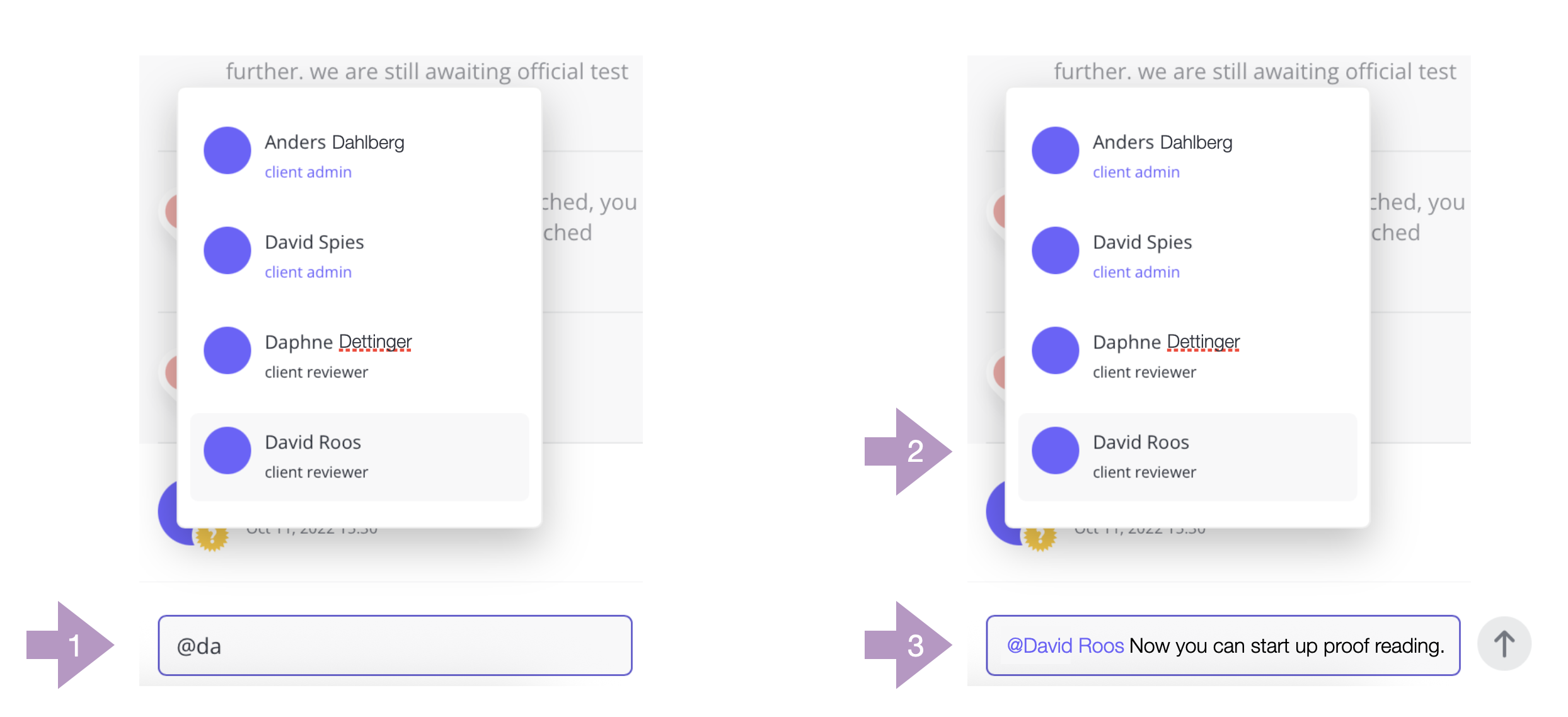
Shorten the list – also write the beginning of the person's name.
1. If there are a large number of participants, you should also write the first few characters of the person's name. 1-3 characters may be enough.
2. When you see the person's name - click on the name. The person will be added to the comment field.
3. Now you can write your message.
4. You can of course add more recipients. Then repeat these steps.
The notifications and in particular e-mail notifications speed up the process and when you feel that you want to ensure that the recipient is notified by e-mail, you can choose between using @Mention or activate/reactivate the person in question to the project (Edit the project and the permissions list by clicking on the pen symbol to the right of the project title in the header.
Basic settings for email notifications
… Which are pre-activated when you get a new account, is that all notifications are activated for on-site notifications and that email notifications are activated for; New media uploads (when New material is uploaded), New projects (when you are invited or activated in projects) and @Mention (when mentioned with a personal message).
We recommend that you always have email notification activated for New projects and @Mention. (New media uploads are good for new users and people who are less likely to participate in projects).
If you are the owner of the project, you should ensure that the project participants have the correct notification settings activated that the project requires.
Learn more about notification settings, click here.
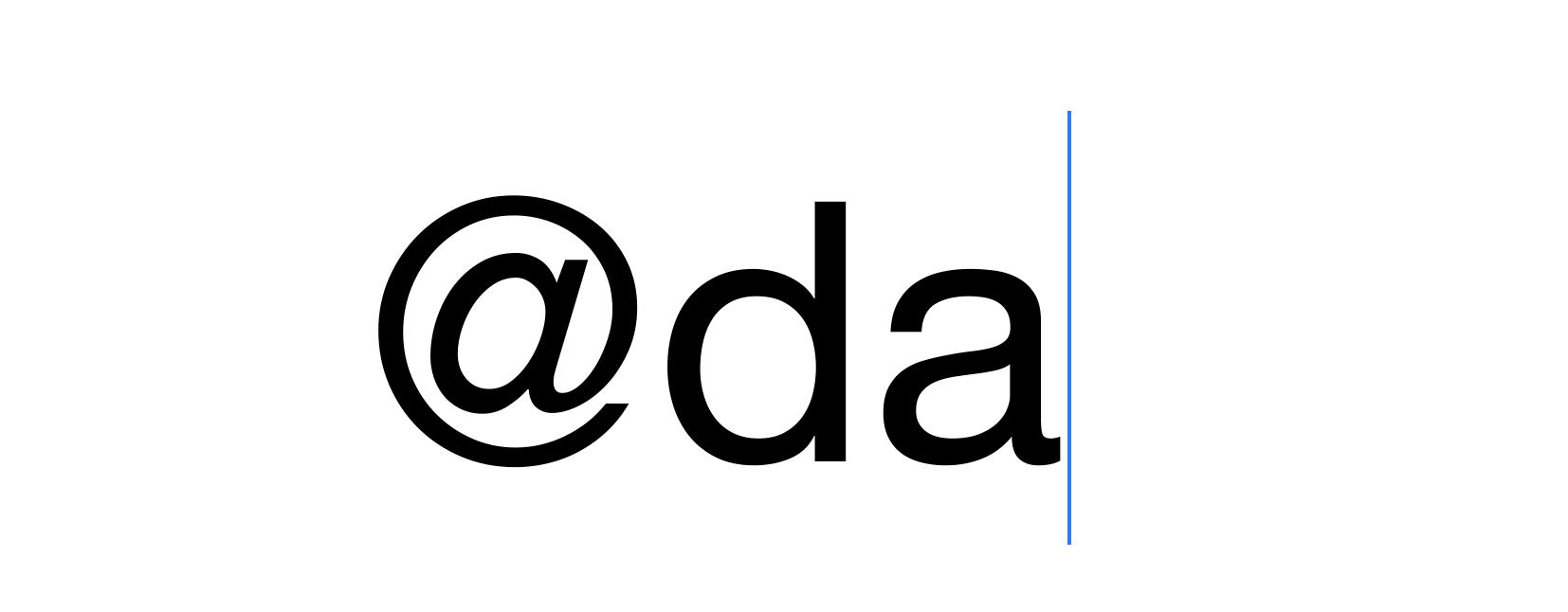
Many project participants on the list? Type @ and the beginning of the name you are looking for.