
With “Strict Mode” you can lock pages in the project while proofreading changes are being made.

The collaboration between creators and reviewers is in most cases based on various agreements. There may be predetermined dates for review and for adjustments, and there may be a decision that status changes should not occur at the same time as the adjustment work. This is because implementation becomes more difficult and the risk of misunderstanding increases.
With “Strict Mode,” creators can lock down entities in an ongoing project after a review round is complete, avoiding the risk of sudden status changes for already approved files and additional comments being added to red-marked pages that are currently being adjusted.
A new button in the toolbox.
With “Strict Mode” you get a lock on all devices with the status “Change” and “Approved”, i.e. those marked red and green. Those marked yellow are still unlocked and ready for review.
In the meantime, reviewers will no longer have access to any review tools, nor will they be able to make additions to comments that have already been posted. And they will not be able to change the status of those that are red and green as long as they are locked.
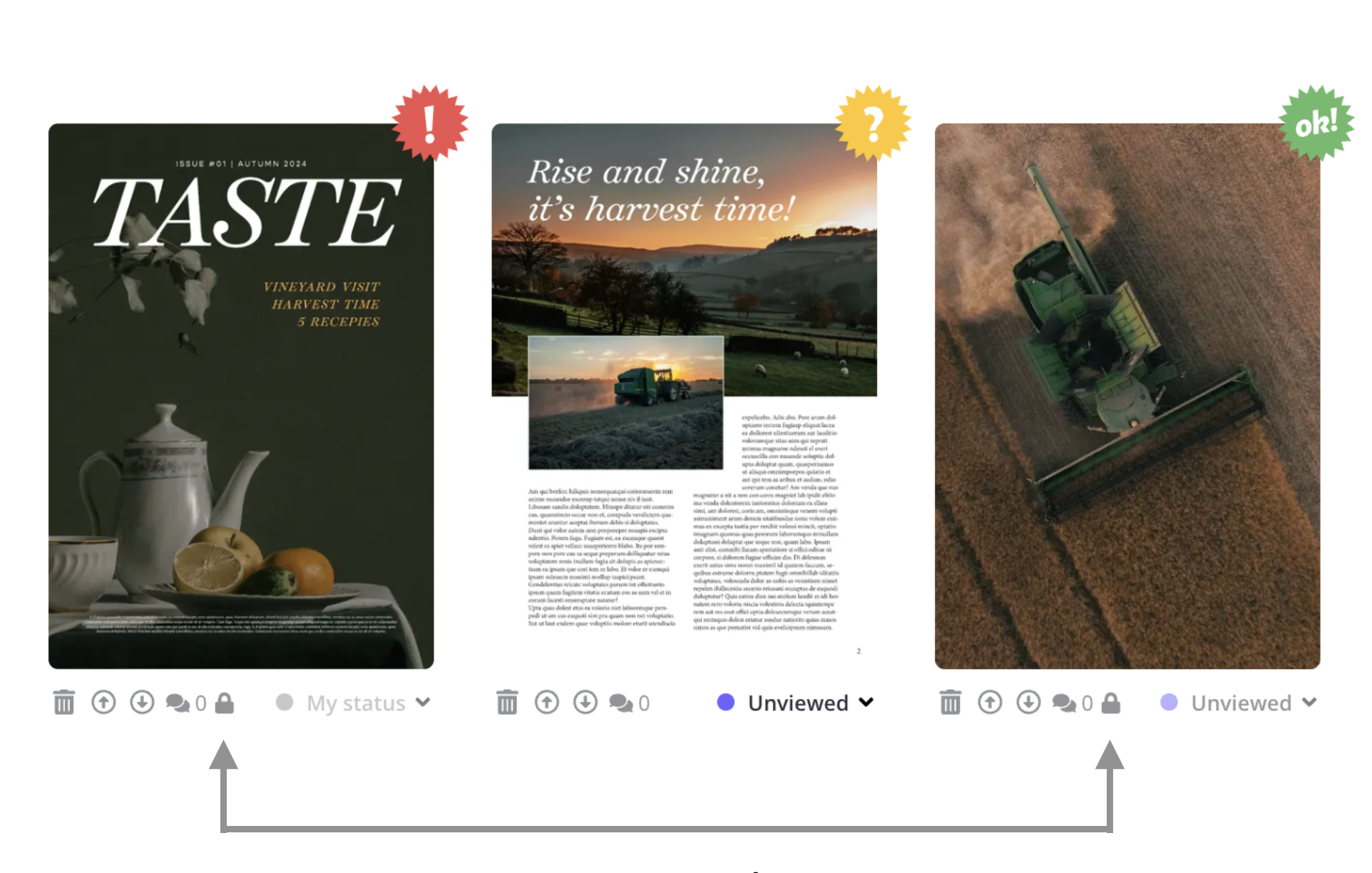
Pages marked red and green are now locked. However, reviewers can still comment on pages marked yellow.
When a page is locked, you cannot add new markings, additional comments, or change the status.
When the creator is finished and releases new versions, the adjusted entities will be marked yellow again and automatically unlocked.
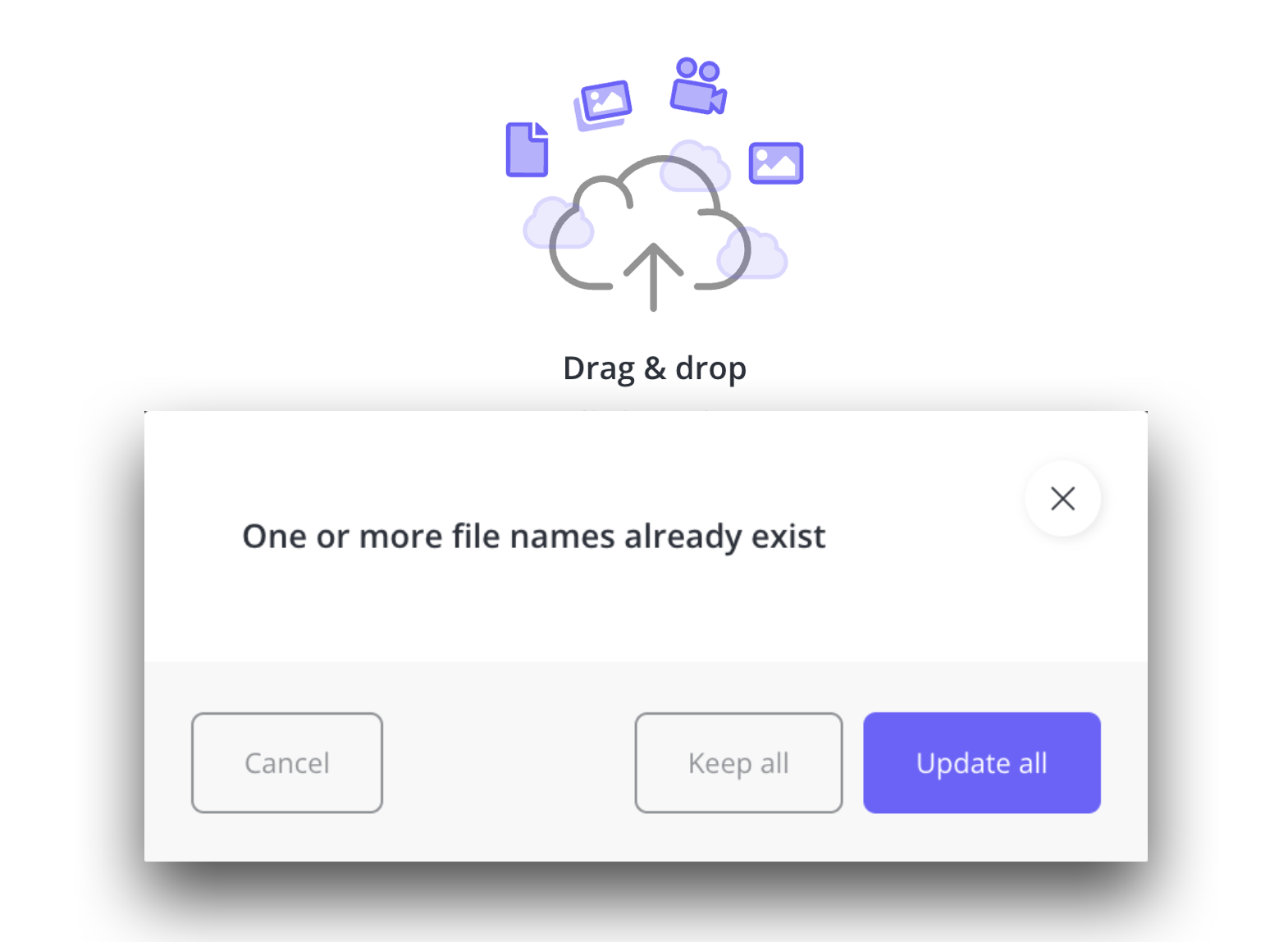
Drag and drop new versions – and select “Update all”.

New version is unlocked again. Approved page is locked until the creator unlocks it.
Lock or unlock individual entities.
From the agency side, there is always the option to lock individual units without activating the lock tool in the toolbox. The lock button is found in the review view for the current unit.
In the same way, you can unlock a page/file/unit – whatever you call it.

A separate lock button in the review view, to unlock or lock specific page.
Or unlock the entire project.
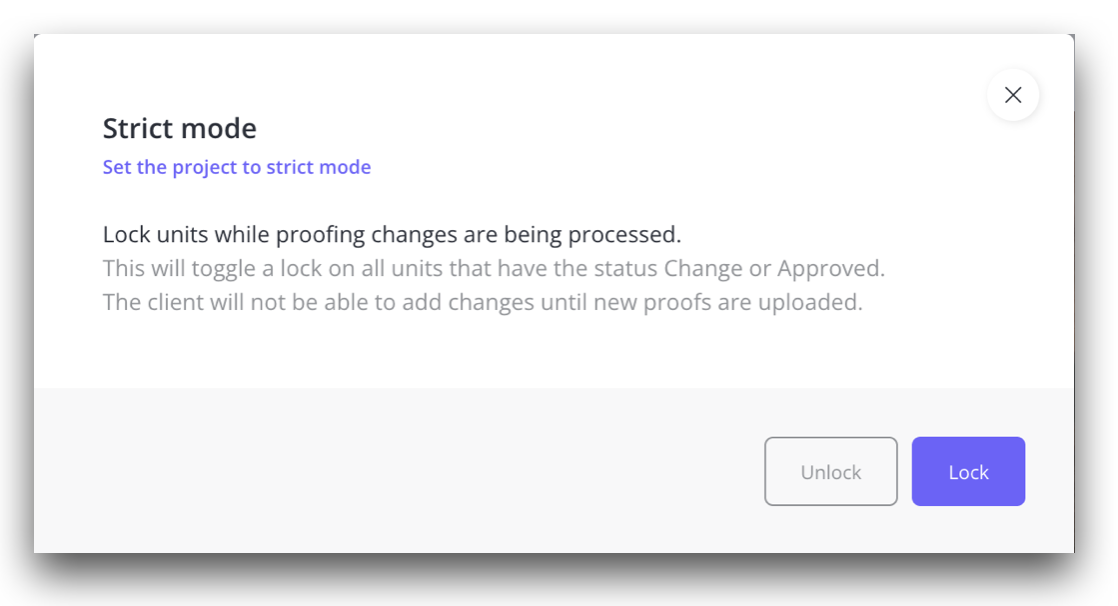
Click on the project's lock symbol to access the toggle where the creative team can enable Strict Mode or to unlock all locked entities in the project.
Summary:
Agency view:
• Pause reviewed files (red and green) with the touch of a button.
• Automatic unlocking when uploading new versions (yellow).
• Flexible: Lock or unlock individual files.
Reviewers:
• Already reviewed files (red and green) are paused while adjustments are made.
• Yellow marked units are still open for review.