
Archive or reactivate projects via the project dashboard
Archive management is simplified with the new project dashboard. When the project list has become long and many projects have been completed, you can now select multiple projects and archive them with a single selection.
Archive selected projects:
Mark the projects you want to archive and select the desired deletion setting.
In the example video above, two projects are selected. Then, click on “Actions” and select “Archive selected”. Now the archiving modal appears where you can choose the time for automatic deletion.
The default setting is “Never”, which means that you archive the project permanently or until further notice. You can reactivate and change the setting at a later time.
In the video, you choose “1 month”. This means that the project is automatically deleted after 1 month.
For traditional advertising agencies, 3 months is a common option. By then the campaign has been delivered, published, invoiced, certified and paid.
After that, you rarely get new questions like “what, who and when”. 12 months is a common choice for annual recurring campaigns (Christmas, Easter, start of season etc).
Reactivate projects from the archive:
You can access the archive by clicking on “Show Archived”.
In the video above, a project is selected in the archive. Then, click on “Actions” and select “Restore selected”. (The number in parentheses indicates the number of selected projects).
Click on “Restore”. Now the project is reactivated and back in the project list.
Back to the project panel
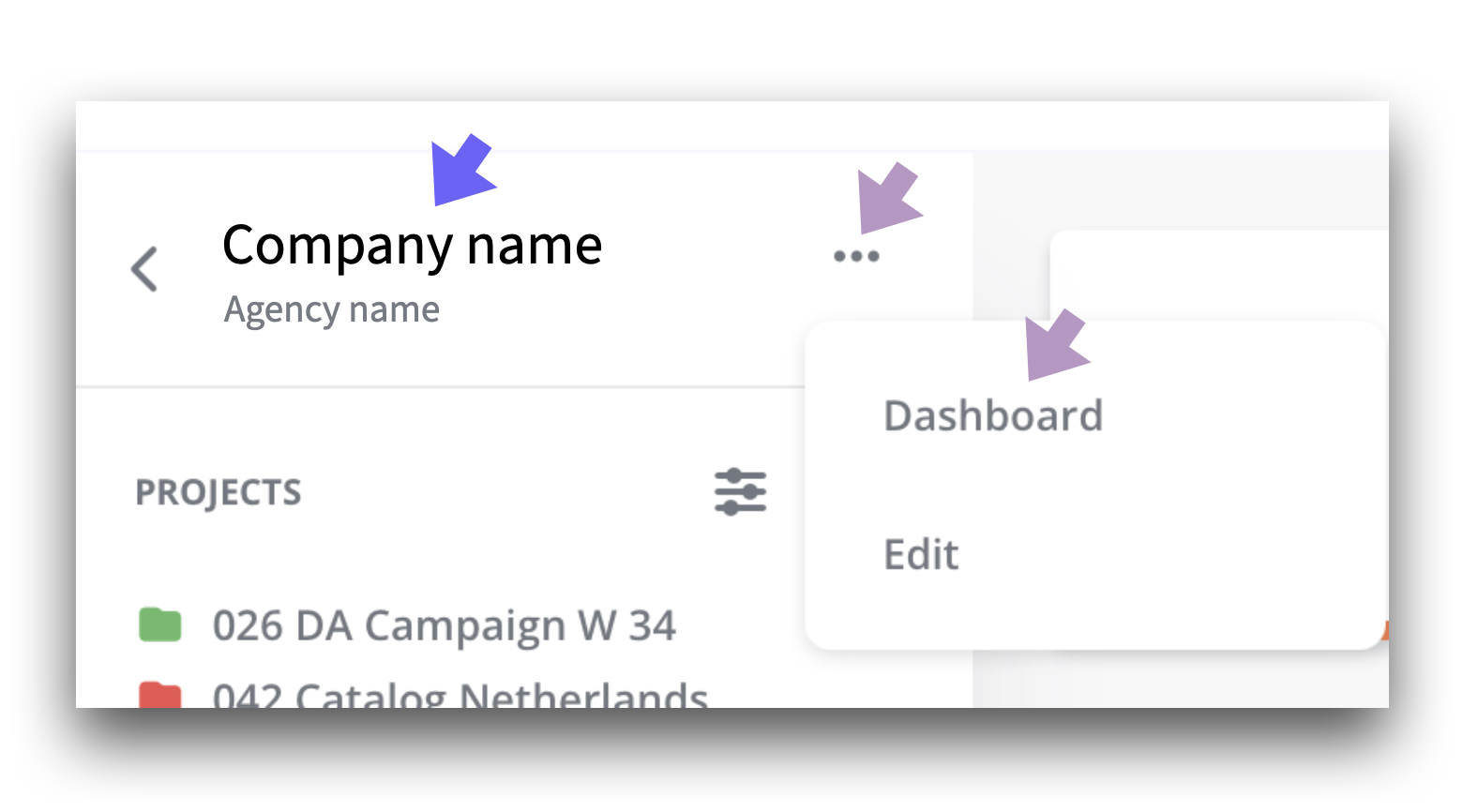
Two of four ways to get back to the project panel.
• If you are still in the archive view in the project panel, you will return to the project view by unchecking the “Show Archived” toggle.
• You can also click on the “Workspace name” which in the example is “Company name”.
• Or click on the three-dot menu (• • •) and select “Dashboard”.
• Every time you select a Workspace from the home page, you will be taken to its project panel.
Archive or restore individual projects
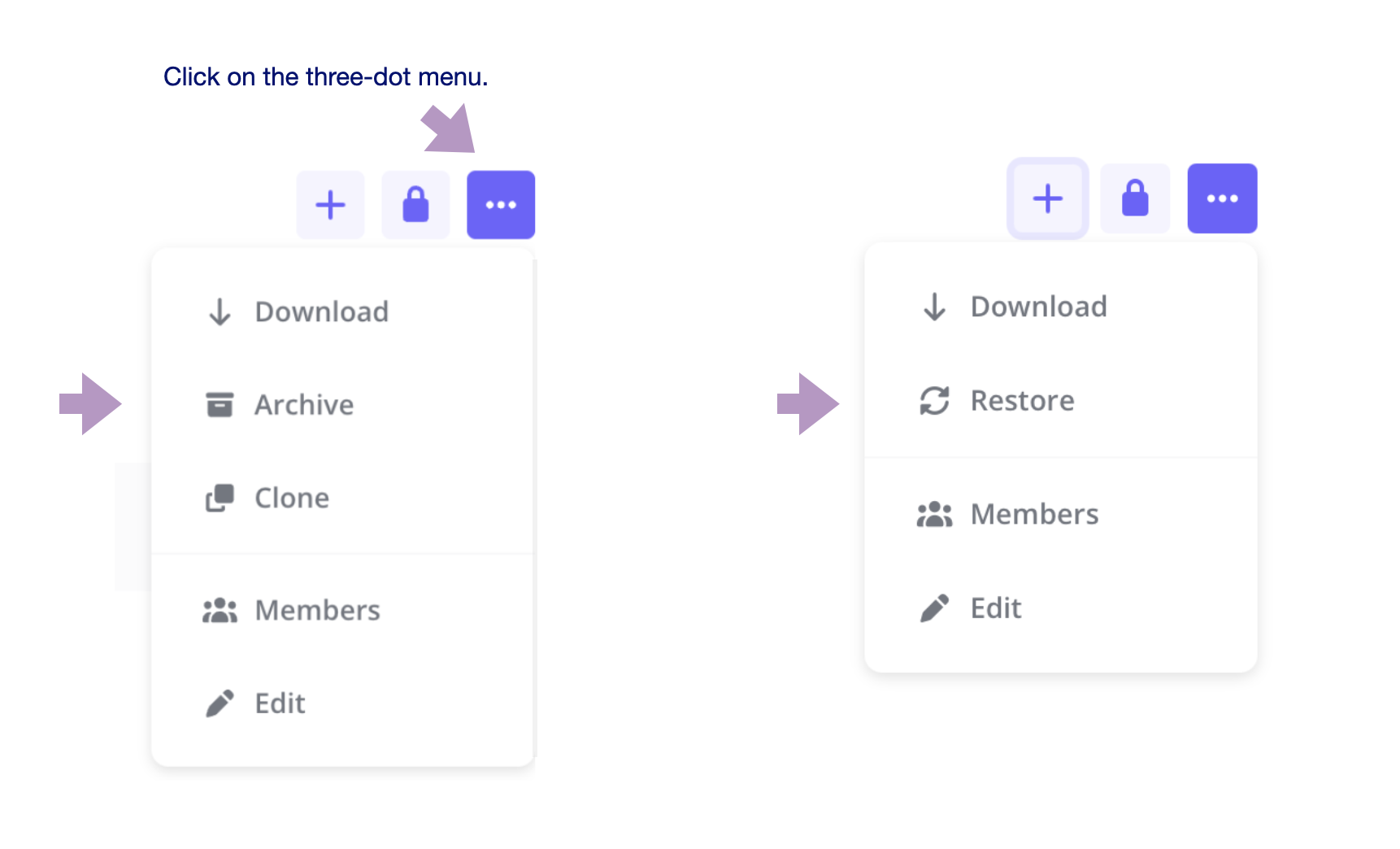
Click on the three-dot menu for the project you have open – And the corresponding button in the archive.
Download full description as pdf. Click here.