
Flexible participant management with the new setup – Workspace
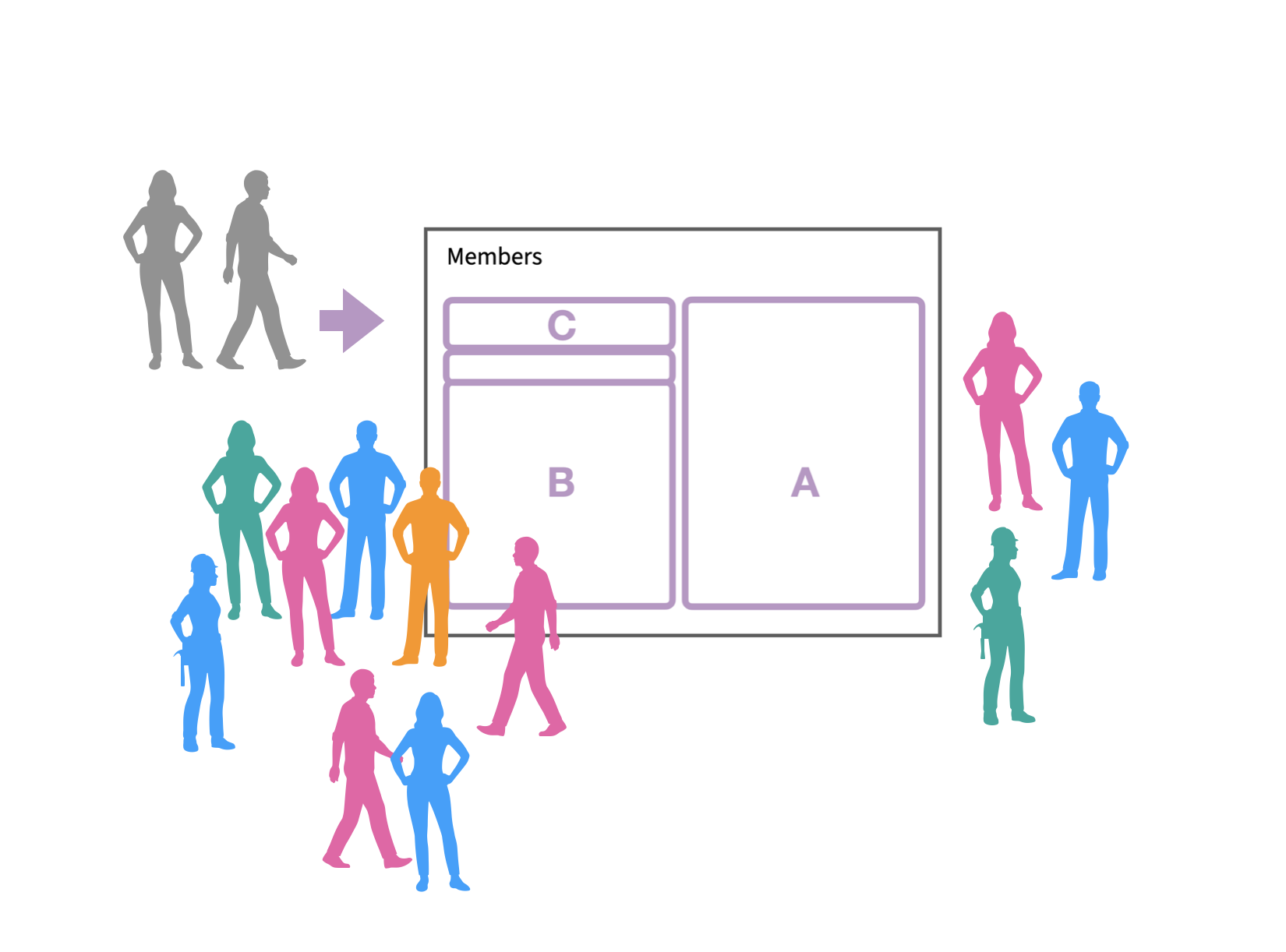
With workspace in ProoferHive, completely new possibilities are offered when it comes to managing participants, both in different workspaces and in ditto projects.
As a user, you will be able to participate in multiple workspaces and you will only need to have one account with one login to access and do everything you need.
Workspace is the biggest development in ProoferHive in a long time, but despite that, a majority of users may not notice any major difference.
At least not until you, as an administrator, create and invite to new workspaces.

Workspace replaces the strict agency/client setup.
From the start, it's the same. Your client list looks the same as before, but the heading "Clients" has been replaced with the word "Workspaces". The main novelty lies in new possibilities to connect participants to different workspaces and to the projects listed in your workspaces.
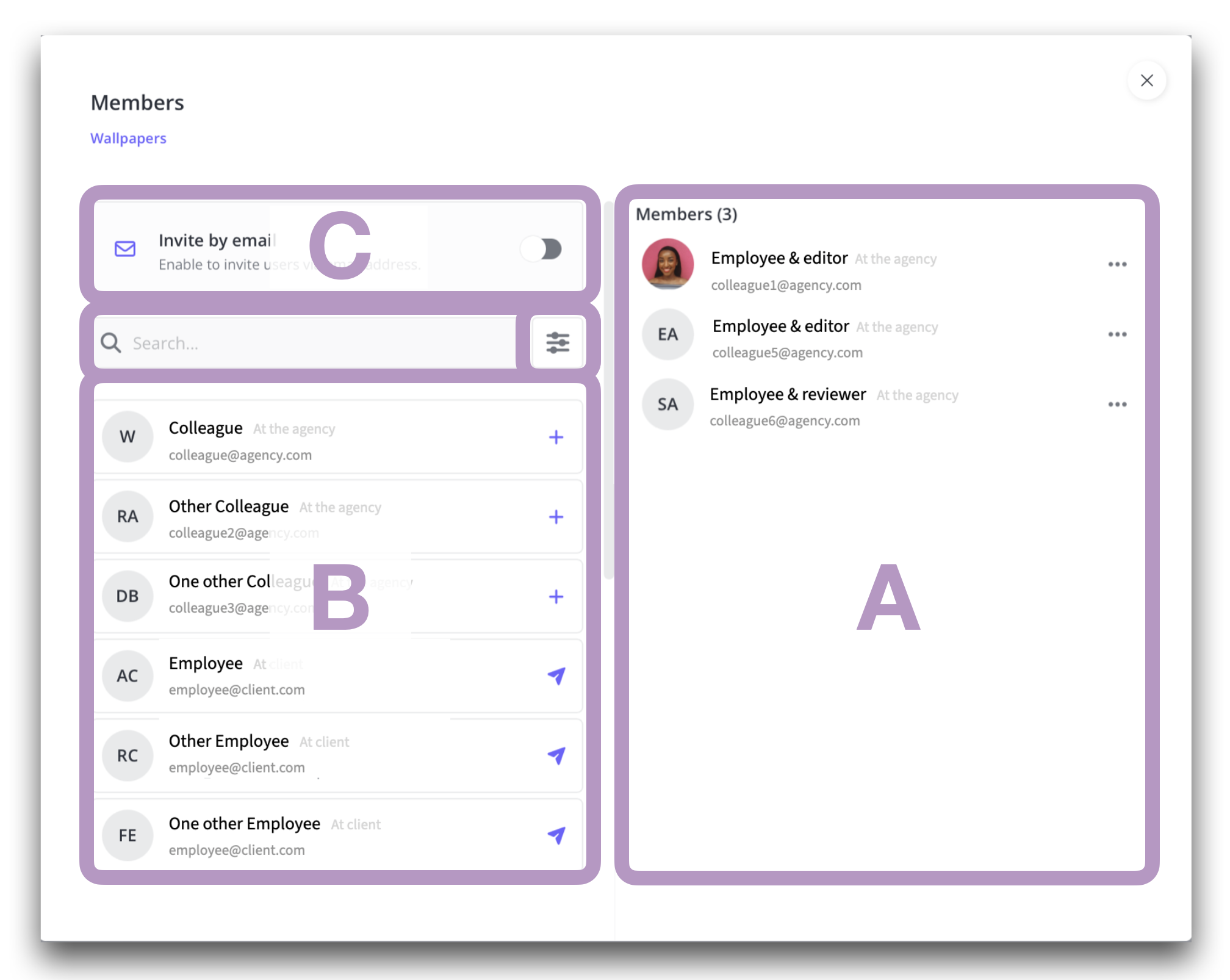
You reach all your contacts from a unified project modal. A: Those who have been invited. B: All your ProoferHive contacts. C: Invite people who are not in your ProoferHive.
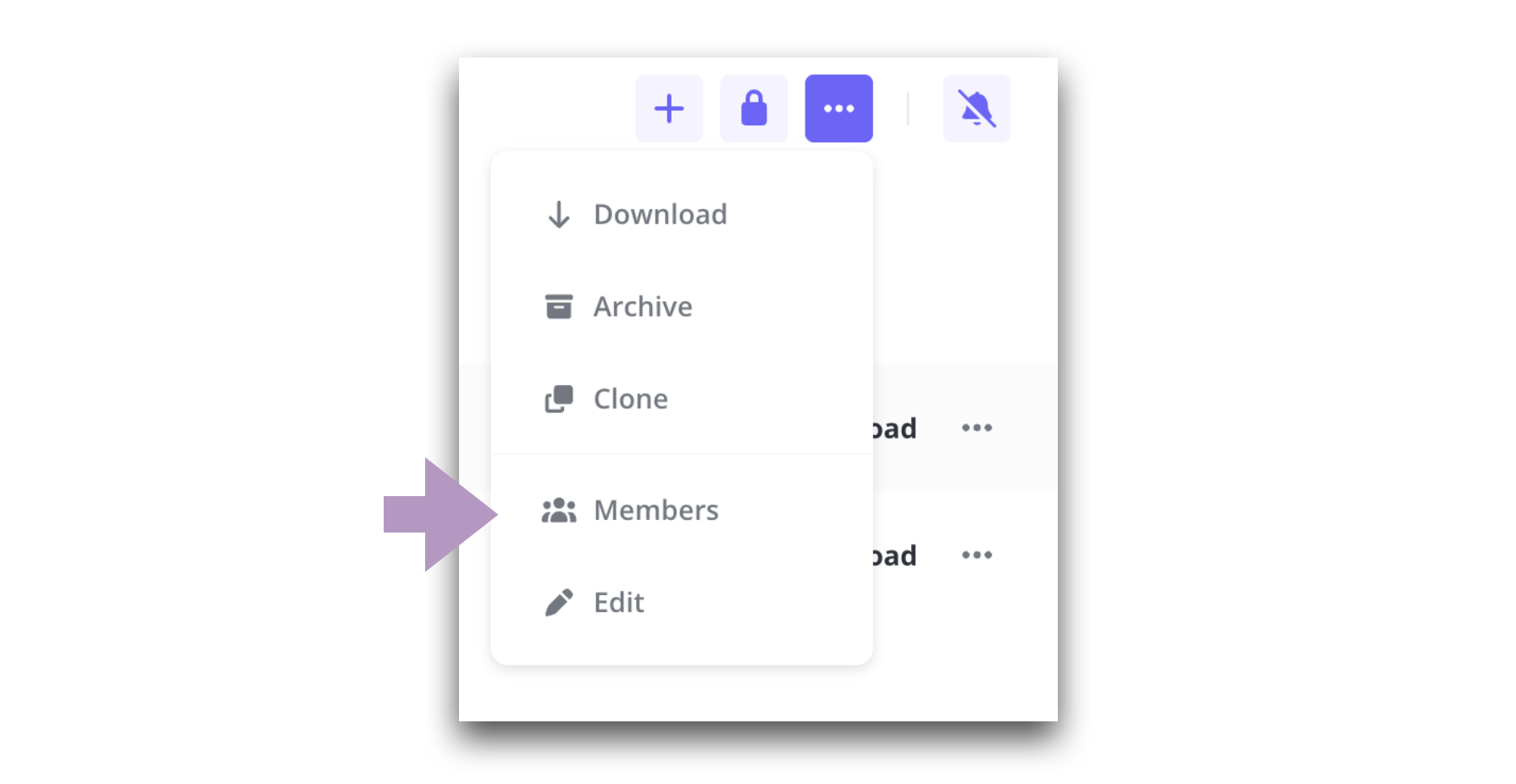
The project page toolbox is simplified and you can find the project participant modal under the three-dot menu – Members.
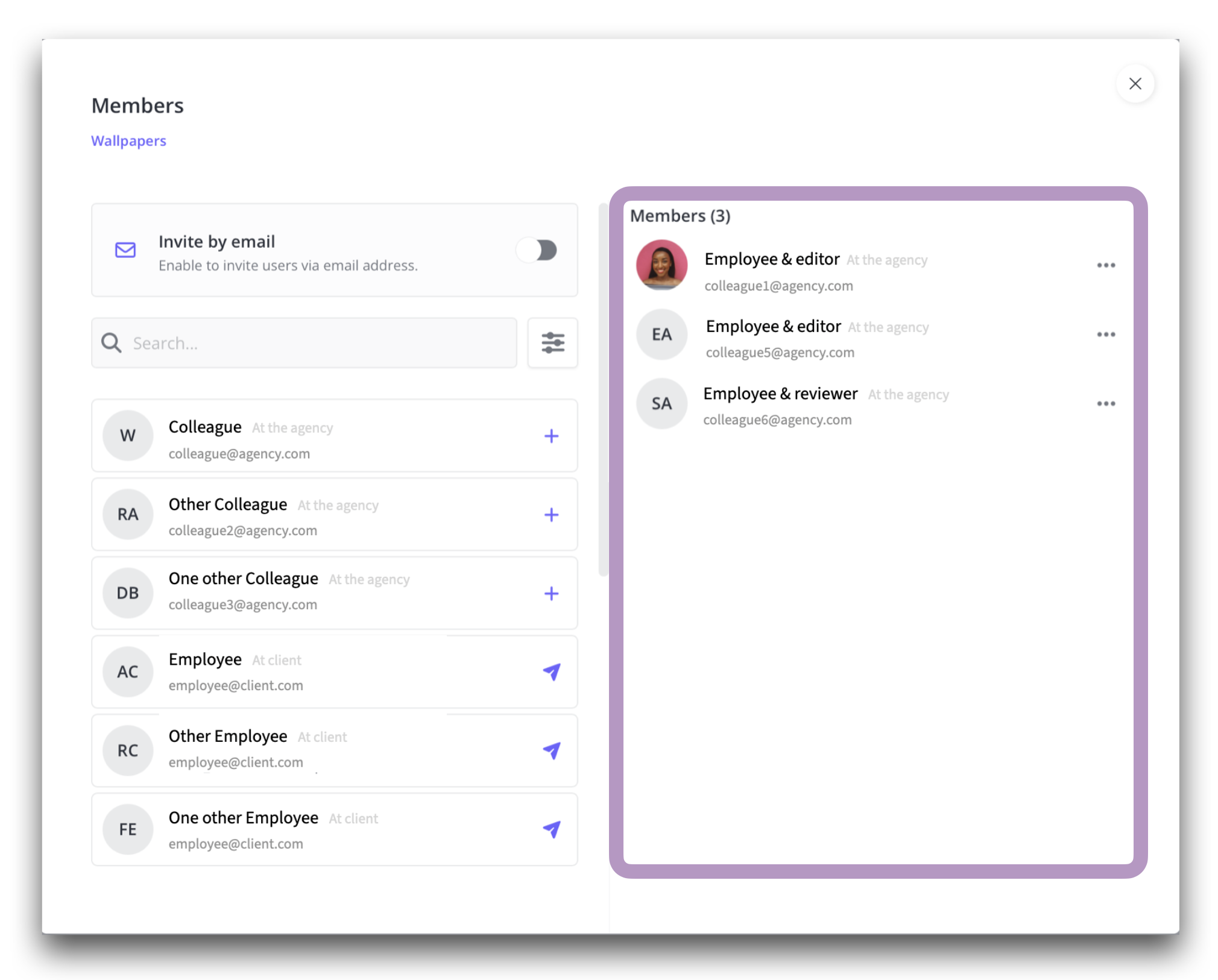
Everyone who has been invited to the project so far.
We'll start from the beginning. In existing and upcoming projects, you can see in the right column who has been invited to the project.
If you invite new users, they will be added to the same list. Until they respond to the invitation, they will be under the temporary heading "Pending invitations". This gives you a good overview and the opportunity to remind them if necessary.
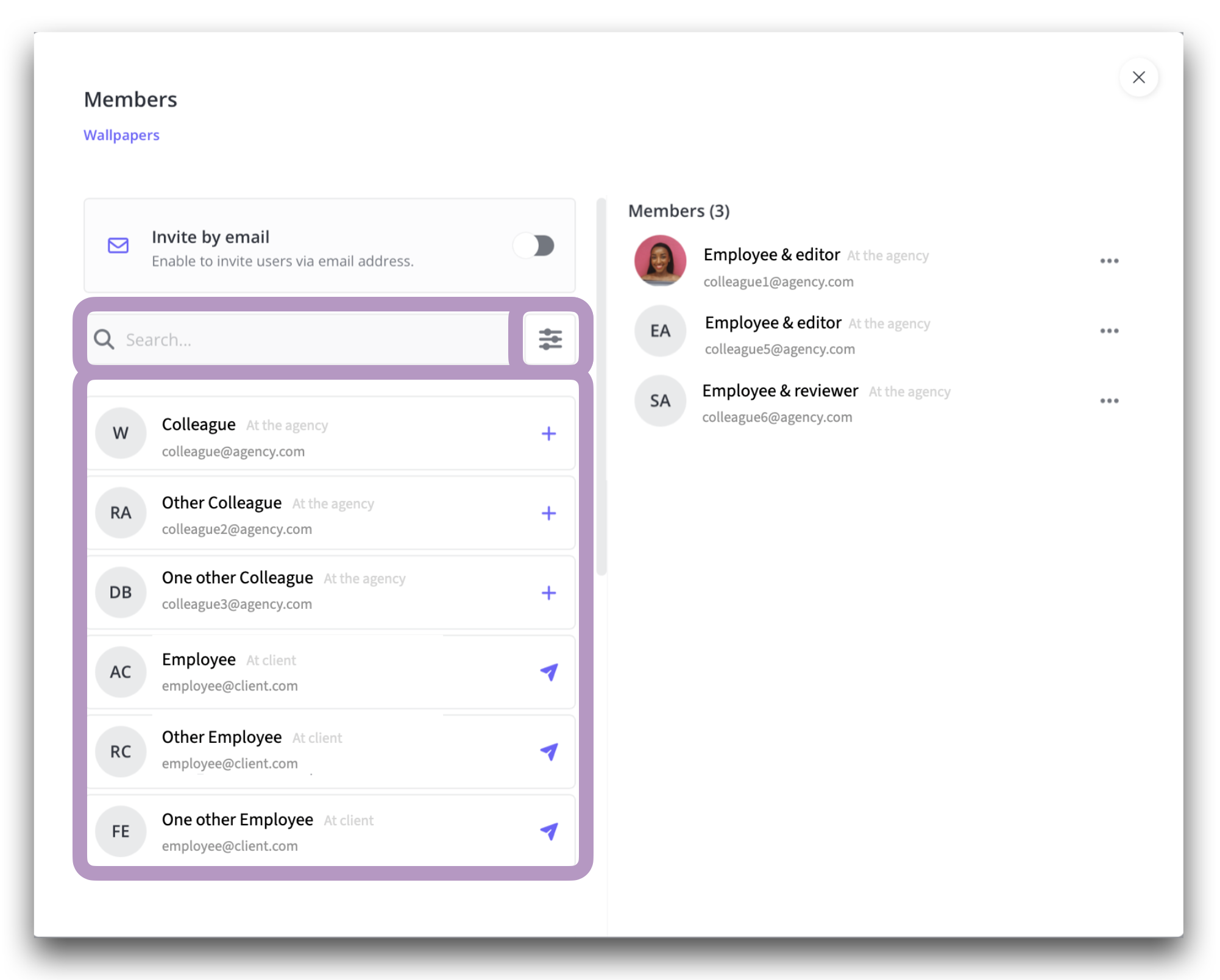
All your contacts in ProoferHive.
In the left column you will find all your ProoferHive contacts. There are both free search fields and filtering that make it easier to find the right person and category.
Participants from the agency side are easily added by clicking on the plus symbol (+) next to the person's name. Other participants will receive an invitation to respond.
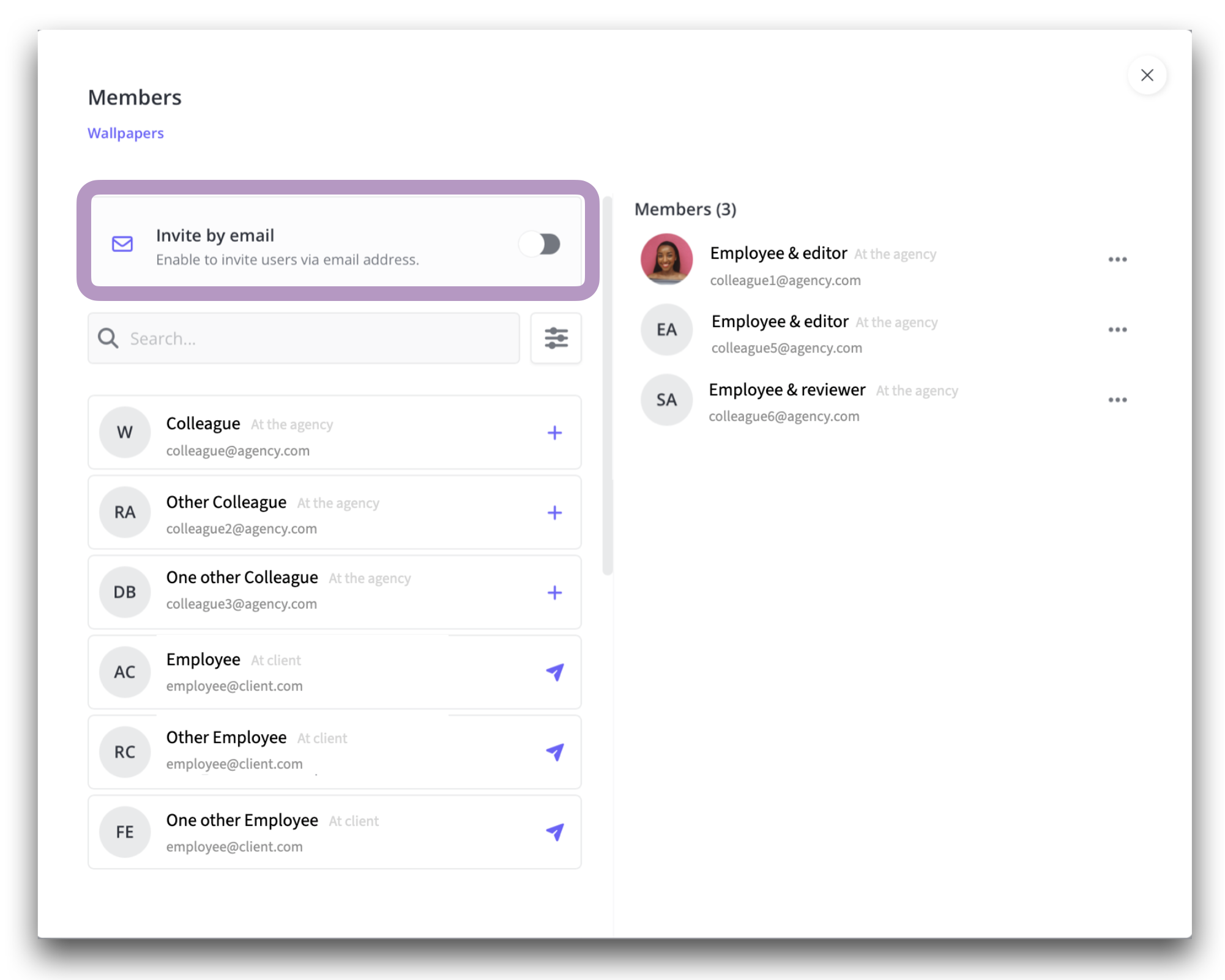
Invite people who are missing from your list.
If you are missing someone from your list, you can send the invitation directly using the person's email address. Regardless of whether the person already has ProoferHive for other collaborations or if he/she do not have an account in ProoferHive at all.
Those you invite via the project modal will automatically also end up in the corresponding modal for managing participants in the workspace.
Read and download your guide:
Agency version: Click here.
Marketing team: Order from prooferhive@wobot.se
All guides and manuals can be found here on the resource site under the heading User manuals.
Find the corresponding modal for managing members in a workspace
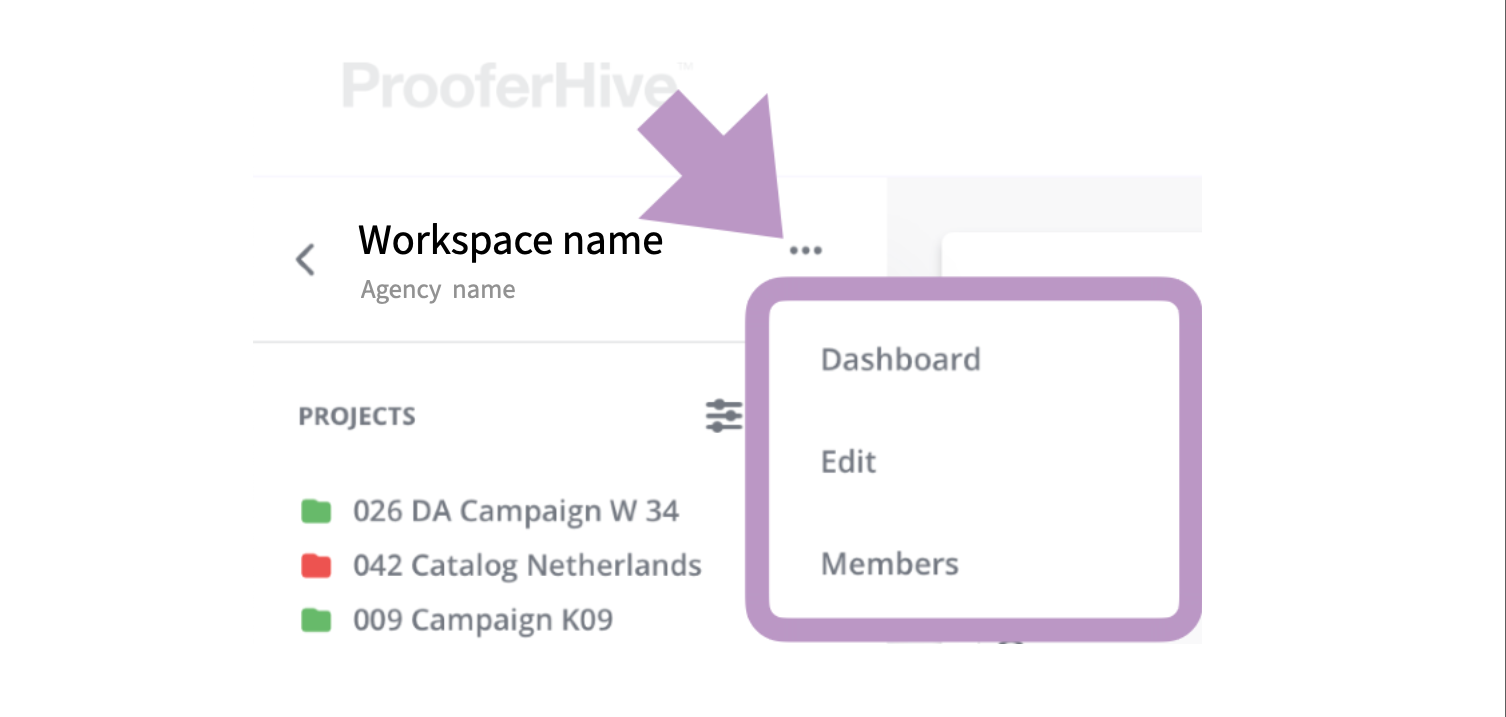
In the top left corner of the current project page…
When you want to manage members and participants in a workspace, (i.e. gross list of agency teams and client teams, etc., for a client, etc.).
Click on the three-dot menu next to the workspace name on the current project page. Select Members. The modal for managing participants for a workspace looks and works the same as the modal for project participants.
NOTE that if you have invited new users via the project modal, they will also be added to the same workspace. No duplication of work.
New customer or partner coming in?
When you need to create a new workspace, i.e. invite a new client/company or an agency etc., you will find a guide for this here. Click here.